|
|
MAIN
|
| home |
| modding home |
| ARITCLES |
| basic scenario creation |
| uniform modding overview |
| the order of things |
| variables reference |
| commands reference |
| map layout |
| INI FILES |
| cwbr.ini |
| level.ini |
| MAP CSV LAYOUT |
| map_name.csv |
| SCENARIO CSV LAYOUT |
| units.csv |
| events.csv |
| objectives.csv |
| MAIN CSV LAYOUT |
| artyammo.csv |
| effects.csv |
| formation.csv |
| gamescreens.csv |
| gamesounds.csv |
| levels.csv |
| mainscreens.csv |
| mainsounds.csv |
| names.csv |
| openobjs.csv |
| openplay.csv |
| sprites.csv |
| tables.csv |
| toolbar.csv |
| tooltext.csv |
| unitcommon.csv |
| units.csv |
| unitsprite.csv |
| weapons.csv |

|
6thVermont's
Basic Scenario Tutorial 101
|
|||||||||||||||||||||||||||||||||||||||||||||||||||||||||||||||||||||||||||||||||||||||||||||||||||||||||||||||||||||||||||||||||||||||||||||||||||||||||||||||||||||||||||||||||||||||||||||||||||||||||||||||||||||||||||||||||||||||||||||||||||||||||||||||||||||||||||||||||||||||||||||||||||||||||||||||||||||||||||||||||||||||||||||||||||||||||||||||||||||||
| Download Related Files | |||||||||||||||||||||||||||||||||||||||||||||||||||||||||||||||||||||||||||||||||||||||||||||||||||||||||||||||||||||||||||||||||||||||||||||||||||||||||||||||||||||||||||||||||||||||||||||||||||||||||||||||||||||||||||||||||||||||||||||||||||||||||||||||||||||||||||||||||||||||||||||||||||||||||||||||||||||||||||||||||||||||||||||||||||||||||||||||||||||||
|
Creating
Basic Scenarios for By The
game Civil War – Bull Run (CWBR) is designed from the ground up
to be modified by users to create new scenarios on either of the
Bull Run or fantasy battlefields
included with the game. To
demonstrate the process of building a new scenario, we will alter
an existing scenario to develop a new custom scenario that will
be a hypothetical historical version. What
you need: Aside from the game, which you already own, the tools
needed to make new scenarios are minimal. It can be done with
a minimal text editor such as Notepad, but is much easier with
a spreadsheet program such as Excel or Quattro. All of the files
used to define a scenario are either plain text files or ‘comma
separated value’ (csv) files. Planning: One of the most important aspects of scenario design
is planning. If you are creating a new historical or historical
variant scenario, a good knowledge of the actual course of the
battle is needed. Even with a fantasy scenario, some knowledge
of the units involved is needed. In addition, a good study of
the map your battle will be on is needed. You do not need to have
your units starting at opposite sides of the map unless you really
enjoy watching units march. A helpful tip is to print out the
Mini Map graphic file. The file is c:\program files\Activision Value\Civil War Bull Run\maps\1st_BULL_RUN_HIST_MM.tga.
Scenario Files: Before we
begin with the mod, we need to examine the basic structure of
the scenario files. To
take a look at the basic structure look at the directory on your
CDROM SDK\Scenarios\08 - Hunter (U_Div) In the root of the scenario
files is one required file, level.ini, which holds some basic
information about the scenario and will be discussed in more detail
below. In addition to that file are two required directories,
Data Files and Text, and optional directories.
During the loading of a scenario, the game engine checks the scenario
files and uses any game file found there in preference
to the equivalent file in the main game. This gives the scenario
designer wide latitude in altering the game, a potential that
has barely been touched. Any of the five main directories can exist
in the scenarios folder and can override the main files of the
game (maps, text, data files, sounds, graphics).
So you can experiment by creating a scenario and copying
the files that you want to modify into your scenario folder without
every messing up the game. File
choice is defined at follows: 1) Scenario loaded from MMG or Folder, and files in here will override files
from the main game. The
data files directory must contain
three files, events.csv,
objectives.csv, and units.csv. Other files can be added
as needed. The text directory must contain a file screen.txt and a file intro.txt. The first contains the text of various messages used in the scenario
and intro.txt has the text used in the
bottom section of the ‘Choose a Scenario’ window on the ‘Custom
Scenarios’ selection screen. Details
of the contents of the *.txt files are covered in the Appendix. The details of
the *.csv files are in the Excel
file: Scenario files.xls that is also in the same location where this file was downloaded from. New
Scenario Example: For our new scenario, we are going to start with
the Burnside brigade level scenario.
Go into the ?? directory on the CD and copy the directory: 03
- Burnside (U_Brig)
into the c:\program files\Activision Value\Civil War Bull Run\scenarios
directory. Next rename the directory to: Burnside
Left (U_Brig) . In this scenario, we are going to have Burnside turn left off of the
Sudley Road just past the Newman farm. In the historical battle,
Evans had moved up this road and set up his line of battle near
the Carter farm. This is the alternate that we are going to set
up. First
steps: MMG has built in some very useful tools for the scenario
designer which we will take advantage of. Using your text editor open up the game .ini file: c:\program files\Activision Value\Civil War Bull Run\CWBR.ini. Add
the following text at the beginning of the file: [Initialization] Save
the file and exit the editor. These commands do two useful things.
The first turns on the display that shows the location of the
selected unit or officer in the game XZ coordinate system.
This system is use by numerous files to specify the location of
units on the battlefield. The numbering starts at the lower left
with coordinates 1,1 and ends at the top right near Centreville
at coordinates 131071, 131071. The second command totally disables
all AI functions so that units will not fight at all. This allows
units to be marched all over the map without starting odd battles.
For scale, the engine uses 32 units per yard.
This makes the map 4096 yards by 4096 yards or 2.33 miles
square. Next
shift to the scenario directory (c:\program
files\Activision Value\Civil War Bull Run\scenarios\Burnside Left and open up the file level.ini with your text editor. The ‘;’ character at the beginning
of a line in any *.ini file tells the program that this line is
a comment and to ignore all content after the semi-colon. Put
a semi-colon at the beginning of these lines: CommandHeight=40 ;
CommandHeight=40 These
changes disable the movement limitations so that you can freely
move your point of view (POV) around the battlefield. Next
edit the [Rank] section so it ends up looking like this: [Rank] Finally,
change the start time to 9:00:00 AM, then save the file and close
the editor. Next
change to the Data files
directory and open events.csv . While setting NoAI=1 in the CWBR.ini file prevents conflict, it does not stop unit movement
that is dictated in the events.csv file. Change all of the entries
in the time column to 23:00:00 then save the file and exit. Moving
US Units: Now having done that start the game, go into Custom
Scenarios and select the new Burnside Left scenario. Select Col
Hunter as your character and load the game.
After the game loads, nothing will happen until you specifically
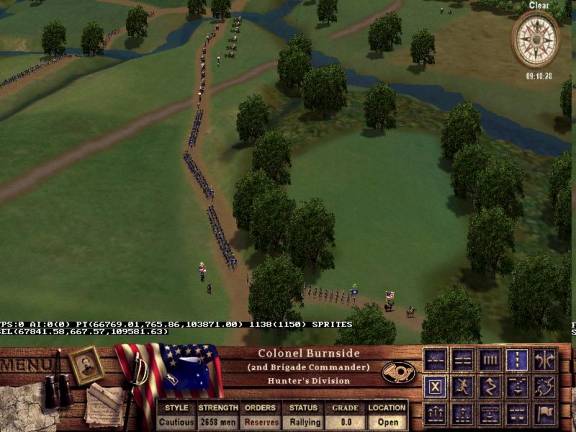
order it. Find Burnside and select him. March him and the entire
brigade back up Sudley Road and position the head of the column
just above the turn for the Carter farm road. Move the lead column
onto the side road so that the tail is just a the intersection
with Sudley Rd. Move the other three brigades of Burnside along
Sudley Road to be in march column. Next select Reynolds battery and move them up to behind Burnsides
column. Then select Owen’s
Battery and move them up behind Reynolds. You will have to move
the individual guns for both batteries into road column.
Next and most importantly hit the ‘l’ key. This writes
a file named unitlocs.csv
in the root game directory (c:\program
files\Activision Value\Civil War Bull Run). This file contains the XZ location of each unit on the map, as well
as the direction that they are facing, at the time the key was
hit. When you are all done, it should look like
this:
Exit
the game. Next open up unitlocs.csv in the game directory
and also open up units.csv in the scenario directory.
In unitlocs.csv select all of the first
four colums (A-D) and copy. Then open units.csv and paste the information
into columns J-M. Save units.csv and then exit from both
files. The Union units are now in the desired starting position.
You should restart the game, selecting Col Hunter and make sure
that the units are in the correct position. Moving
CSA Units: The process is quite similar for CSA units. Start
the game, this time selecting General Beauregard. When the game
opens, hit the down arrow key two times to change to Col. Evans.
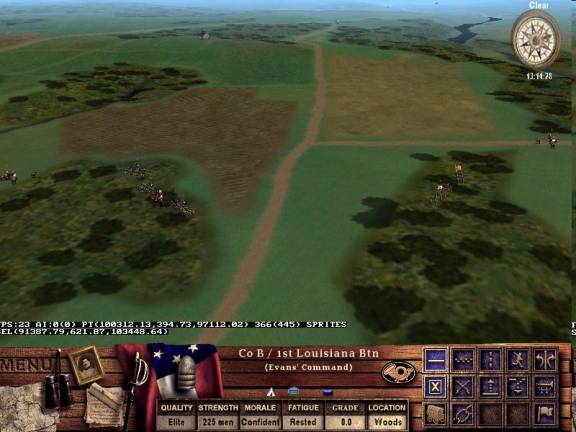
Now march his unit to their left and set his 5 units up as shown
in the picture below. Also move the artillery sections of Lt Leftwich
and Lt Davidson to their indicated positions.
Davidson is on the left and Leftwich is on the right. Note
that the ‘t’ key has been used to remove the trees from the display
so that the location of all units can be seen clearly. Also note
that Gen. Burnside and his lead regiment are just in view of Col.
Bee at the top of the screen. Again hit the l key to write all
of the unit locations to unitlocs.csv. Exit the game and copy
all unit positions into units.csv as you did above. Save
all files, and reopen the game to check that all units are in
position.
Finding
XZ locations: Next we need to find map locations for objectives
and for destinations for movement. On the display the lower line
of white text on a black background shows the selected units current
location. The first number is the X coordinate and the last number
is the Z coordinate. For this picture:
The
X coordinate is 67841 and the Z coordinate is 109581. The decimal
fractions can be ignored for scenario design. Restart
the game and select Col Evans as your character. Move him to the
intersection of the River road and the road leading to Poplar
Ford. Write down the X and Z coordinates. Next, move Col Owens
down the river road to the intersection with the Warrenton Turnpike,
near the stone bridge and write down the X and Z numbers. Next we need to find locations to deploy the
Union artillery. Exit the scenario and restart, selecting Col.
Hunter as your character. Move Reynolds battery into a good position
to the left of the finger of woods, and record the coordinates.
Select a good position for Owens 2 gun battery and record those
numbers as well. Exit the game. Creating
Objectives: Now open the objectives.csv file in the
Data files
directory. For this scenario we will have three objectives, the
first will be a trigger for the second and the third will be activated
by winning the second. The reason for using triggers to activate
objectives is that these are ones that can be won by either side.
In this scenario, the attacking Union forces must displace
waiting CSA units. If the objectives were there from the start,
the CSA forces would win them without effort. Using triggers is
better than timed activation as this accommodates different player
styles. The first objective
will be the intersection of the River Rd and Poplar ford Rd. In
the Objective Name column in row 16, enter Poplar
Ford Rd and in the
Objective ID
column enter Poplar_Ford_Rd. Enter 0 in the AI column since we want this on to be winnable
only by the player. Next in the loc x and loc z columns
enter the values that you recorded earlier. Scroll right and change
the start time to 9:00, leave the end time at 23:00 which means that it will stay up for the duration
of the game or until won. Next change the radius value (col H)
to 100 which
is the distance in yards that must be clear of CSA forces for
the objective to be won. Finally, set the interval for 0:01, which
is the time the objective must be occupied for a win. We want
the second objective, Lewis_Farm to be winnable by either side
so enter a value of 100 in the AI column, enter 200 in the radius
column, and enter 22:00 in start time and 23:00 in end time.
The reason for having an objective start time of 11:00
PM is to have this objective be activated by a line in the events.csv file. For the third objective, make the name Warrenton Turnpike, ID Warrenton_Turnpike, enter the XZ coordindates, leave the start and end times alone and
set the win time for 0:10. Since we
want to have winning the Warrenton_Turnpike objective to end the scenario,
the type must be set to Major. Adjust the other values as shown in the table
below. Here is how the
revised events.csv file should look, because it is too wide for
the page, it is shown in two parts. Left
side:
Right
side:
Save the file and exit. Restart the game and scenario to be sure
that changes in this file have not caused problems. Well
the game CTD didn’t it. Sometimes you can get a clue as to the
crash by looking at the game log file, in the game main directory
open the file: CWBR.log and scroll all the way to the end. The last few lines
in my version are: 18:01:32
- Adding tree shadows... The
last thing the program tried to do was to load the file events.csv so it is probable, but
not certain, that the problem is in that file. So open the events.csv file in our scenario and let’s take a look. The problem is that there are a number of references
to the objectives in the original Burnside scenario. Since we
have changed the objective IDs for our new scenario, the game
terminated since the objectives do not exist in the current objectives.csv file. The simple solution is to go in and delete
line: 39 which is:
Line
45:
Line
65:
Line
66:
Line
116:
There
are some other changes that are needed in the events.csv file, but let’s leave
those until we get to that section. Let’s see if these changes
are enough to let the game run. Save the file, exit and try to
load the scenario again. If you deleted all of those lines, the
game should load into the scenario. If so, exit and lets move
onto the core of the scenario, the events.csv file. Managing
Events: This is the core of the scenario. In this file, you
dictate the specific movement of units, courier messages, and
leader stances with the goal of setting up the battle the way
you would like it to come out. There is significant complexity
in these files and they amount to a miniature programming language.
In spite of that, it can be learned and some interesting and challenging
scenarios can be devised. In this case, we will not be making
one from scratch but modifying the existing one. First, let’s
put the original event times back into the file. Navigate to the
original 03 Burnside
scenario folder and open up the events.csv file there, copy all of the times and close that
file. Paste those into the events.csv file of the new Burnside goes left scenario. Since we are moving up the start time by 15
minutes, all of the event times should be adjusted by 15 minutes
as well. Next,
move down to the end of the timed events section, there are several
changes that need to be made here as well. First, the orders to
Owens and Reynolds need to be altered so that they will go to
the new locations. Change the XZ coordinates in columns D and
E to the new spots you selected and wrote down above. These will be in line 39 for Owens and line
45 for Reynolds. Also note that the XZ coordinates in line 56
must be changed to match those in the new line 45 for that event
to trigger properly. There are some other things that could be
changed, but it is a good idea not to make too many changes without
testing. So save, exit and see if the scenario will load. Testing: If the edits were made correctly, the scenario will
load. It is not done yet but it is time for the first test of
the new battle. Edit the level.ini file in the root scenario directory so that the rank
section looks like this: [Rank] This
will put you back in charge of Burnsides brigade only and let
the AI handle all of the other units. In addition, edit the CWBR.ini file and comment out the lines: ;
DbgLvl=2 To
turn off the location display and to re-activate the AI. Save
the files and load the game and let’s see a new battle in action.
It’s probably a good idea to take notes of things that need to
be changed during the course of this first test.
Messages: One issue that must be fixed is that the messages from the courier are
not relevant and not arriving at the correct times. We will need
to edit two files, events.csv and screen.txt. Open both files and let’s see what is there. In
the file here are the
lines that send courier messages:
And
And
Here
are the corresponding messages: $Burnside <FONT=Georgia12,R,20,20,20>HDQRS.
2nd Division, UNITED STATES FORCES, July 21st, 1861. <FONT=Georgia14,L,20,20,20>Colonel
Burnside, Move your brigade down the Sudley
Road to the high ground around the Matthew House. From this position, you can capture the crossroads
at the Warrenton Turnpike and cut off the Rebel's supply line.
General Tyler's cannons will soon begin their shelling to create
a diversion. <FONT=Georgia14,R,20,20,20>Your
most obedient servant, Colonel Hunter, Commanding. // $Burnside2 <FONT=Georgia12,R,20,20,20>HDQRS.
2nd Division, UNITED STATES FORCES, July 21st, 1861. <FONT=Georgia14,L,20,20,20>Colonel
Burnside, Owens' and Reynold's batteries
are being hurried up to cover your advance. I'm bringing Porter's
brigade up to reinforce your right flank. You must push hard to
capture Buck Hill. <FONT=Georgia14,R,20,20,20>Your
most obedient servant, Colonel Hunter, Commanding. // $Burnside3 <FONT=Georgia12,R,20,20,20>HDQRS.
2nd Division, UNITED STATES FORCES, July 21st, 1861. <FONT=Georgia14,L,20,20,20>Colonel
Burnside, If your troops are in good order
and you are able to advance, move your men down across the creek
of Young's Branch and up the hill towards the Henry House. We must not let the enemy reinforce their position
on that plateau. If they get artillery up there, they could control
this whole valley. Push
forward, if you can! <FONT=Georgia14,R,20,20,20>Your
most obedient servant, Colonel Hunter, Commanding. The
first line is a timed event and is used to send Burnside the initial
orders. In the original scenario,
no enemy units are in sight at the start of the scenario
and Burnside must march down the road a ways to sight Evans. That
sighting triggers the second message via the ‘evtseetarg’ conditional
command. In the new scenario, Burnside is already in sight of
the enemy at the start of the scenario so both messages are triggered.
The simple solution is to combine the information in the first
two messages and eliminate the second message. Simply remove the
footer of the first message and header of the second message to
make one message. Now,
the first paragraph needs to be rewritten to fit the new scenario
and the second needs an adjustment. Here is text that can be used
for the new version, or you can write your own. <FONT=Georgia14,L,20,20,20>Colonel
Burnside, Move your brigade down this farm
road and past the road on your left that leads to Poplar Ford.
Drive off any rebel forces
you encounter and push on down the road to the Warrenton Turnpike. Owens' and Reynold's batteries
are being hurried up to cover your advance. I'm bringing Porter's
brigade up to reinforce your right flank. You must push hard to
reach the Warrenton Turnpike and open up the Stone bridge to allow
Tylers Division to cross and reinforce our attack. <FONT=Georgia14,R,20,20,20>Your
most obedient servant, Colonel Hunter, Commanding. Make
the needed edits to screen.txt and save the revised file.
Eliminating the second message will also require altering the
events.csv file to remove all mentions of the second message.
There are two lines that need to be removed, lines 44, and 63
shown below.
The
second message writes the text of the message Burnside2 into the
courier log. Delete both lines from the events.csv file and save and exit.
Now run the scenario again to see how the new version plays. Take
notes on anything else that might need changing. More testing: When I ran this version, the third Burnside message came to me a few minutes
into the game. Open up the events.csv file and let’s take a
look and see what is happening. Here is the relevant section of
the file:
As
it ended up after the previous edit, the trigger to send the Burnside3
message is the arrival of ‘Terry’. Let’s change that to have the
message sent only when the Lewis Farm Objective has been won.
The command is ‘evtobjdone’. Rearrange this section to the following:
Here
all of the CSA actions are grouped. The new section is a two stage
action, the Poplar_Ford_Rd objective is present at the start.
It’s function is only to trigger the Lewis_Farm objective, which
can be won by either side. This trigger allows an objective that
is winnable by both sides to be activated only when the Union
forces arrive. Finally after the Lewis_Farm objective has been
won, the Burnside3 message is sent by Hunter and the Warrenton
Turnpike objective is activated.
Here is the text that I used for this new Burnside3 message: …. <FONT=Georgia14,L,20,20,20>Colonel
Burnside, Continue to move your brigade
towards the Warrenton turnpike, it is most important that we clear
the stone bridge for Tyler's
Division to cross. Push forward! <FONT=Georgia14,R,20,20,20>Your
most obedient servant, Colonel Hunter, Commanding. Save
all files and try the scenario again. If you manage to get to
a win, you will find that the scenario does not end after you
win the Warrenton_Turnpike objective. We need to add a couple of additional
lines to events.csv to bring things to a conclusion. Here are
the lines to change or add:
This
line is changed to load the screen for No Objectives when the
time limit of 10:30 AM is reached.
This
line loads the end screen for achieving Union Objectives when
the Warrenton_Turnpike objective is won. At
this point, the scenario should be both playable and interesting.
I should give you fair warning that a number of iterations of
testing and error finding were omitted as they did not contribute
to teaching you about making scenarios. However, if you choose
to build new scenarios or modify existing one, you should expect
many rounds of debugging before you are finally happy with the
scenario. Creating
and .mmg file for distribution:
The final step needed to distribute a scenario is relatively simple.
From your CD, copy the file SDK\arpack.exe into the root game directory. Run this program, it
will look in the scenarios directory and show you all of the subdirectories
present. Click on the Burnside
goes left directory
and the lower panel will show all of the scenario files. Simply
click on the Create MMG File button and the program will make
a file named Burnside
Goes Left (U_Brig).mmg in the scenarios directory. This compressed file (14 KB) can be easily
shared among other players as an email attachment. Last Thoughts: This has hopefully given you a basic introduction into the rather complex
world of creating or modifying scenarios for CWBR. This game is in much the same state that the
two armies at Bull Run were. They looked like armies and could
perform the basic functions of armies. However, they needed a
lot of additional training and experience to become the much more
sophisticated instruments that wrote history as the Army of the
Potomac and the Army of Northern Virginia. CWBR has the potential
to improve as much as the armies at Bull Run did. People developing
mods for this game will help to improve and guide the development
of the franchise and produce new battles that will bring much
fun to a larger community of users. Appendix 1 – File Contents and Structure of Scenario Files This section shows the items needed in the specific scenario files. Items in bold text are required, items in italic text are optional. The
level.ini file contains basic setup information for the scenario. level.ini
The
file screen.txt contains the text and
formatting of courier messages specified in the scenario. The
appearance of messages is dictated by the contents of the events.csv file.
The
intro.txt file uses the same formatting
as screen.txt. There is always only
one section to this file. Here
are the contents of the intro.txt from the standard Burnside (U_Brig) scenario in the main game: $Intro <FONT=Georgia16,L,255,255,255>General Burnside <FONT=Georgia14,L,255,255,255>Author: Adam Bryant <FONT=Georgia14,L,255,255,255>(Historical) Location: Sudley Road near
Matthew's House Time: 9:15 a.m. Colonel Burnside's brigade has been marching since 2:00 AM
with nary a rebel to be found. His command, an element of Hunter's
division, has been ordered to "pass the Bull Run stream above
the lower ford at Sudley Springs, and then,turning down to the
left, descend the stream and clear away the enemy who may be guarding
the lower ford and bridge." Ambrose Everett Burnside is a West Point graduate, class of
'47. After being wounded by Apaches in the New Mexico territory,
he resigns his commission in 1853. Later he settles into civilian
life in Rhode Island where he designs and patents a revolutionary,
breech-loading rifle. The Army, though, fearful that it's troopers
will waste too much ammunition, turns down the new weapon, and
Burnside is forced into bankruptcy. With the coming of war, he's
recommissioned a colonel and finds himself commanding a brigade
of Hunter's division. You are Colonel Burnside, leading your troops in the opening
attack of the war in Virginia. The first segment of your maneuver
has been completed, and now those rebels must be confronted. Good luck and may God preserve the Union! ;
** END OF FILE*** |
|||||||||||||||||||||||||||||||||||||||||||||||||||||||||||||||||||||||||||||||||||||||||||||||||||||||||||||||||||||||||||||||||||||||||||||||||||||||||||||||||||||||||||||||||||||||||||||||||||||||||||||||||||||||||||||||||||||||||||||||||||||||||||||||||||||||||||||||||||||||||||||||||||||||||||||||||||||||||||||||||||||||||||||||||||||||||||||||||||||||